Buff Bar
Understanding the Buff Bar
If you're using one of our default interfaces, the buff and debuff bars will be located here:
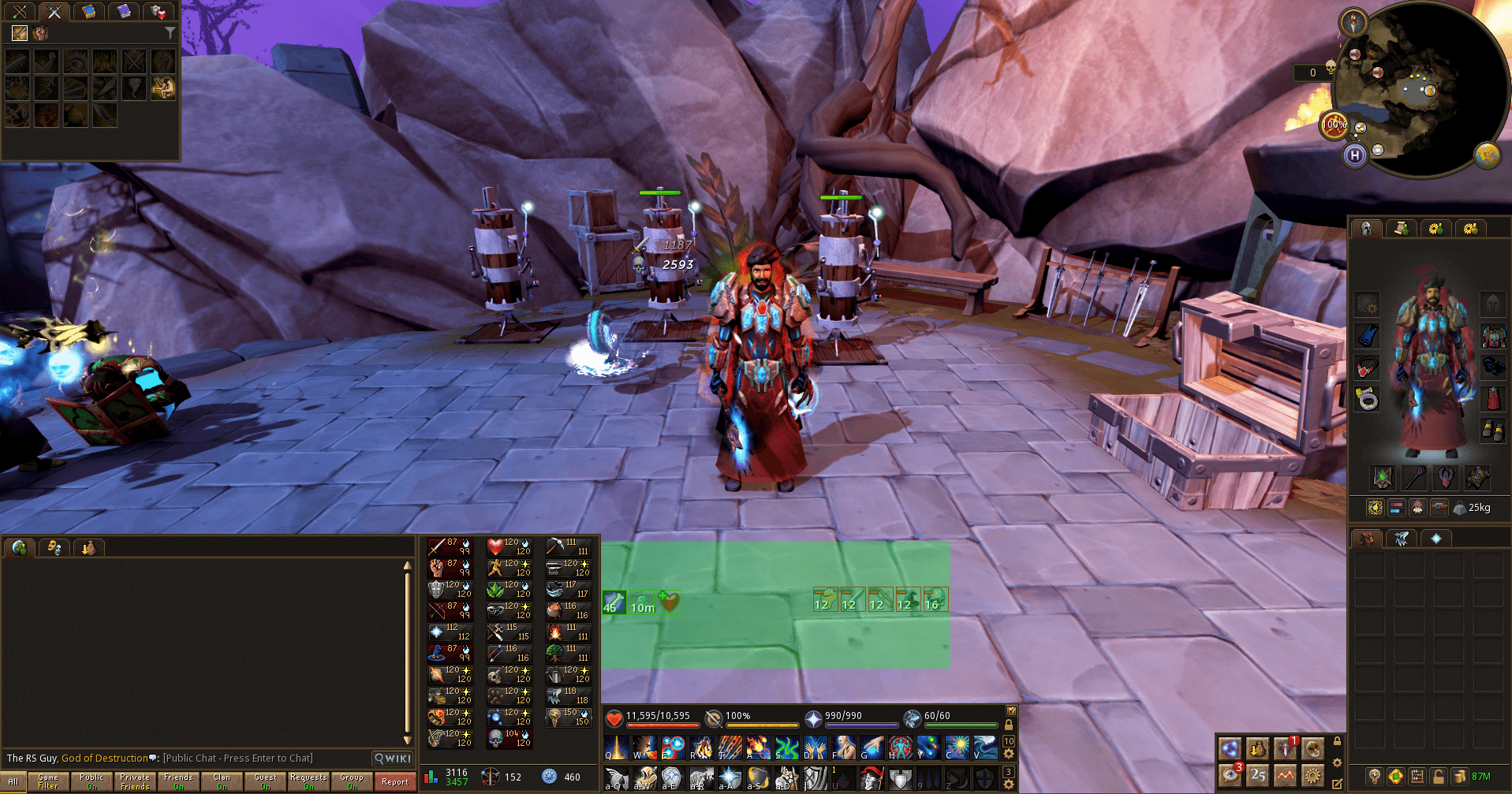 During your adventures, you'll be able to activate buffs
such as stat-boosting prayers and potions. These status effects will appear on the buff bar (Left).
During your adventures, you'll be able to activate buffs
such as stat-boosting prayers and potions. These status effects will appear on the buff bar (Left).
At the same time, your enemies may apply debuffs to you that negatively impact your character. These will appear on the debuff bar (Right).
These interfaces can be customized in various ways, including filtering visible status effects and altering the size of the icons. This can be done by pressing escape to enter settings, and searching for buff bar.
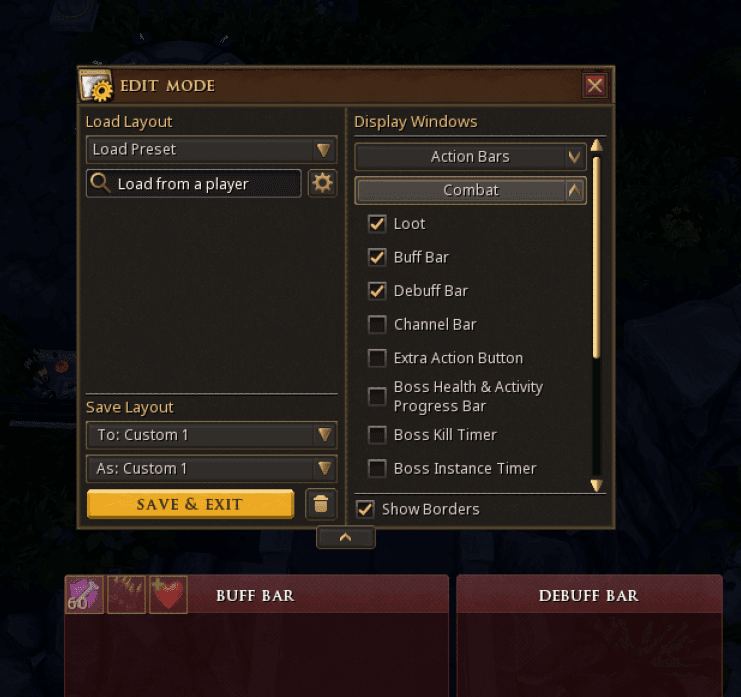
Repositioning and Resizing your Buff Bar & Debuff Bar
- Press Escape
- Click "Edit Layout Mode"
- Ensure "Buff Bar" and "Debuff Bar" are both checked, in the Combat Tab
- Drag bars to your desired location using the header
- Resize the bars by dragging any corner
- Click "Save and Exit"
The Channel Bar

Just above the buff bar in the default interface is the Channel Bar. This displays the length of time channelled abilities are active for, and helps you visually understand when to cast your next ability. When the channel bar has progressed to the final notch, or displays 0.6s you can fire your next ability without losing out on any damage or effects.