Minimap and World Map
Navigating the RuneScape Minimap and World Map
Minimap
This section has a lot of key features that you'll want to keep note of when journeying around Gielinor. There are four main icons on the minimap we will want to familiarize ourselves with:
.png&w=3840&q=75)
 Compass: Clicking this will re-center your camera north
 Run Energy: Shows your current run energy. This can be left clicked to toggle run as well as right clicked to rest.
 Home Teleport: This opens the Lodestone Network map and can be right clicked to access your most recently used lodestone.
 World Map: This opens the World Map. Right clicking this provides access to the world hop list, skybox/filters, and high contrast mode.
Minimap Quick Tips
- You can click on the minimap to walk around.
- You can zoom in and out on the minimap by using the scroll wheel.
- You can resize your minimap if you're using the modern interface system.
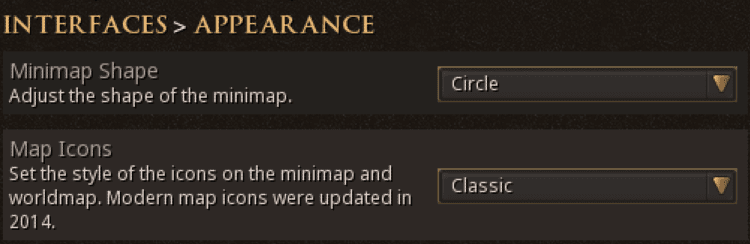
- You can toggle between a circular minimap and a square minimap and toggle between "Classic" and "Modern" map icons in your "Appearance" settings
Map Icons
In addition to the icons around your minmap, there are several useful icons that will appear on your map.
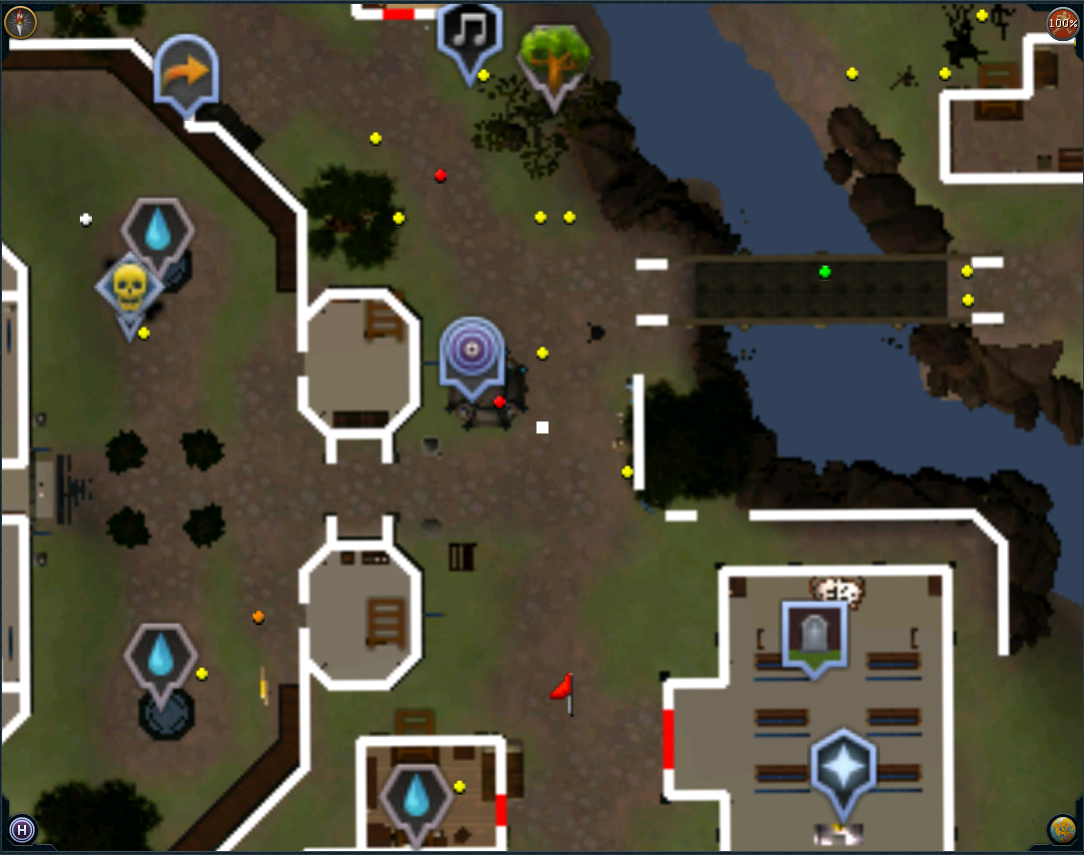
Hover to preview, click to lock
| Icon | Name | Description |
|---|---|---|
| ⬜ | Your Position | Shows where you are |
| 🚩 | Target Destination | Shows where you're walking to |
| ⚪️ | Other Player | The Location of another Player |
| 🟢 | Friend | The Location of one of your friends |
| 🟠 | Clanmate | The Location of someone in your clan |
| 🟡 | NPC | Shows an NPC's location |
| 🔴 | Item Stack | Shows items that are on the ground |
The World Map
The world map is one of the most helpful tools in your toolkit! It allows you to quickly find, mark, and navigate to any location in Gielinor. You can zoom, click, drag, or search the map to get a better understanding of your surroundings.
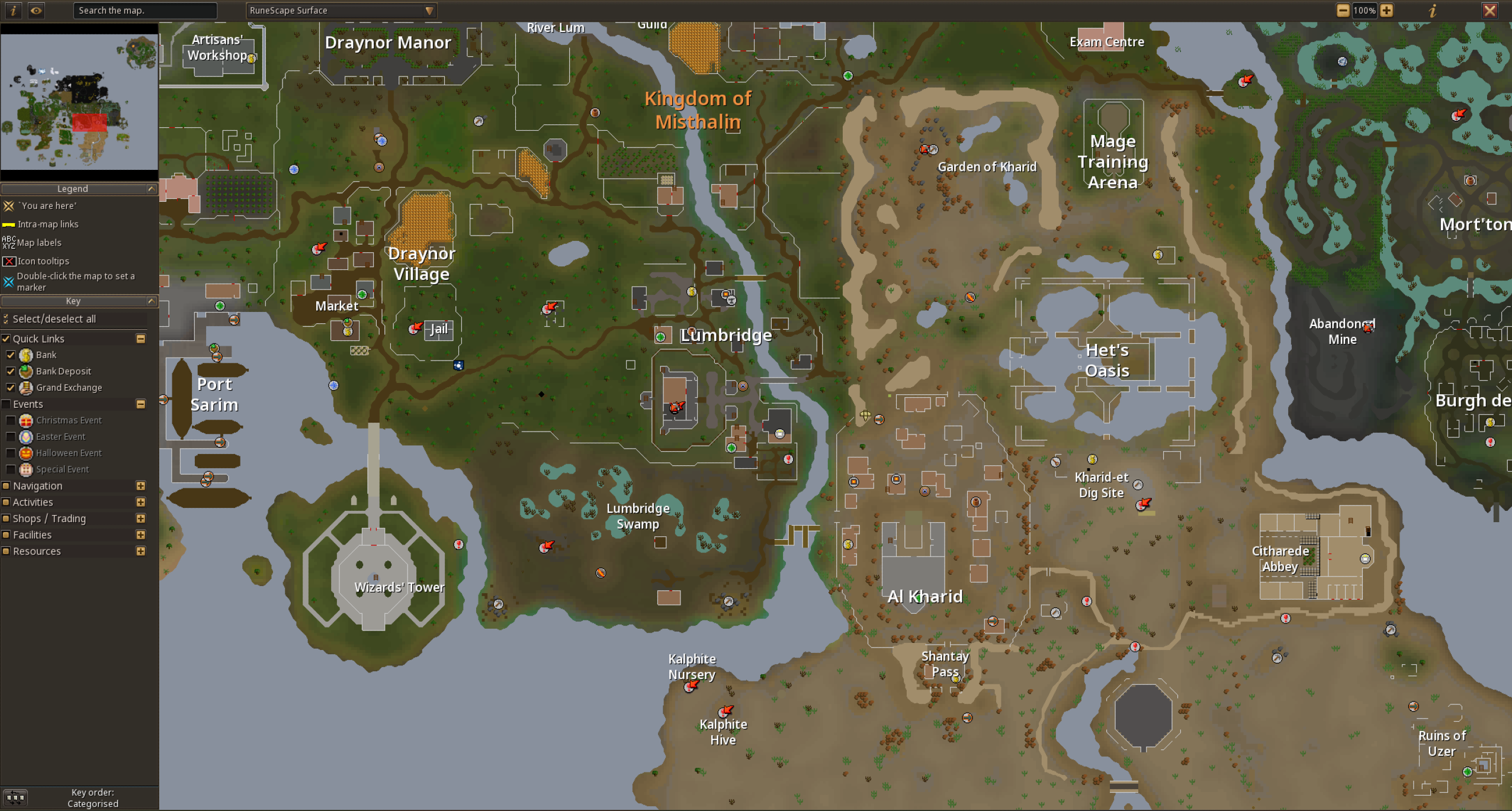
Double clicking the map above will place a marker - give it a try!
World Map Quick Tips
- You can zoom in and out on the world map by using the scroll wheel.
- You can Toggle the filters on the left of the screen to show or hide common locations.
- You can select other map areas to the right of the search bar.
- Hovering over skill icons provides useful information about skilling resource locations and training areas.
Lodestone Network
Lodestones can be used to quickly navigate around Gielinor. These can be unlocked by clicking on lodestones you encounter around the game world. Some areas may have quest requirements to access. These cannot be used in combat, but require no runes and have no cooldown.
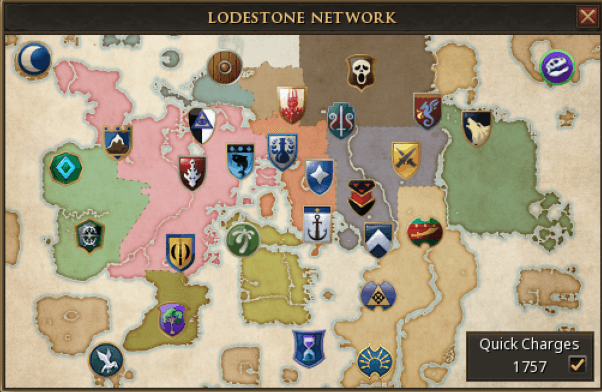
A player activating the Catherby Lodestone for the first time
Skyboxes & Filters
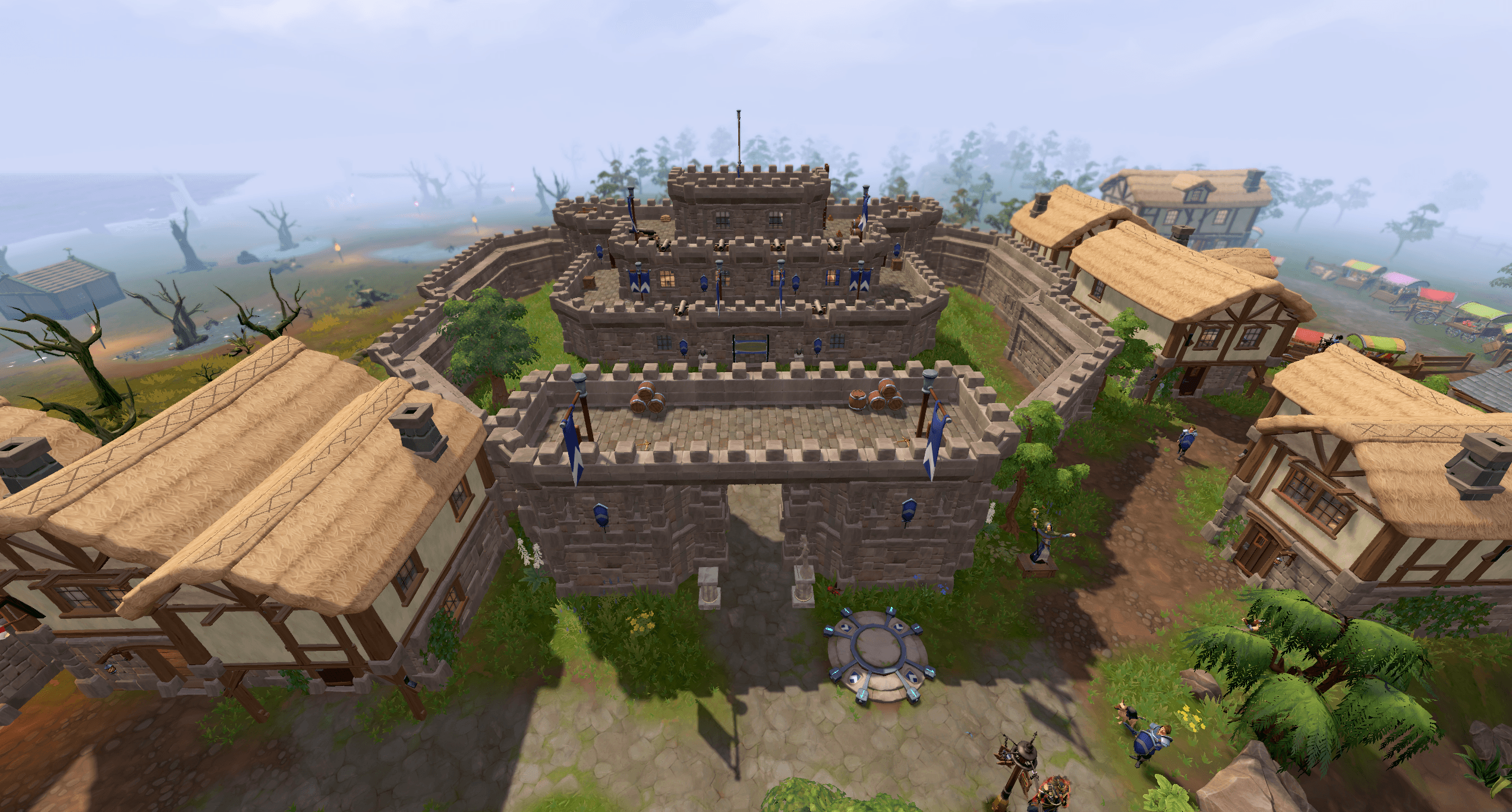
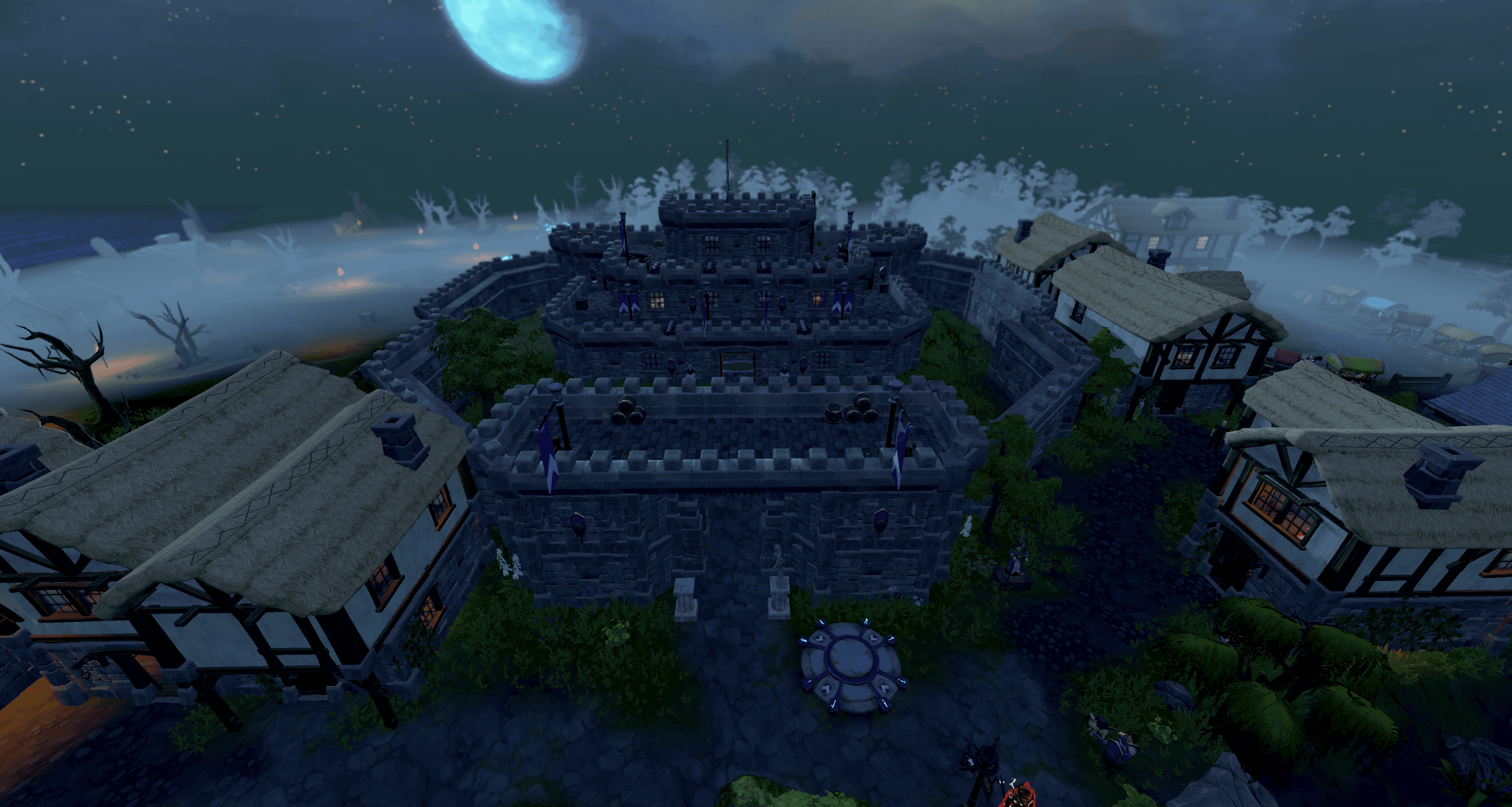
Skyboxes and filters can change the way the world around you looks. Some are unlocked by default while others require quests or achievements. Want a real challenge? Try playing on Magic Toad mode.
You can open the skyboxes and filters menu by right clicking on the world map icon on the bottom right of your minimap.
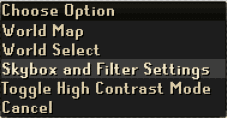
High Contrast Mode
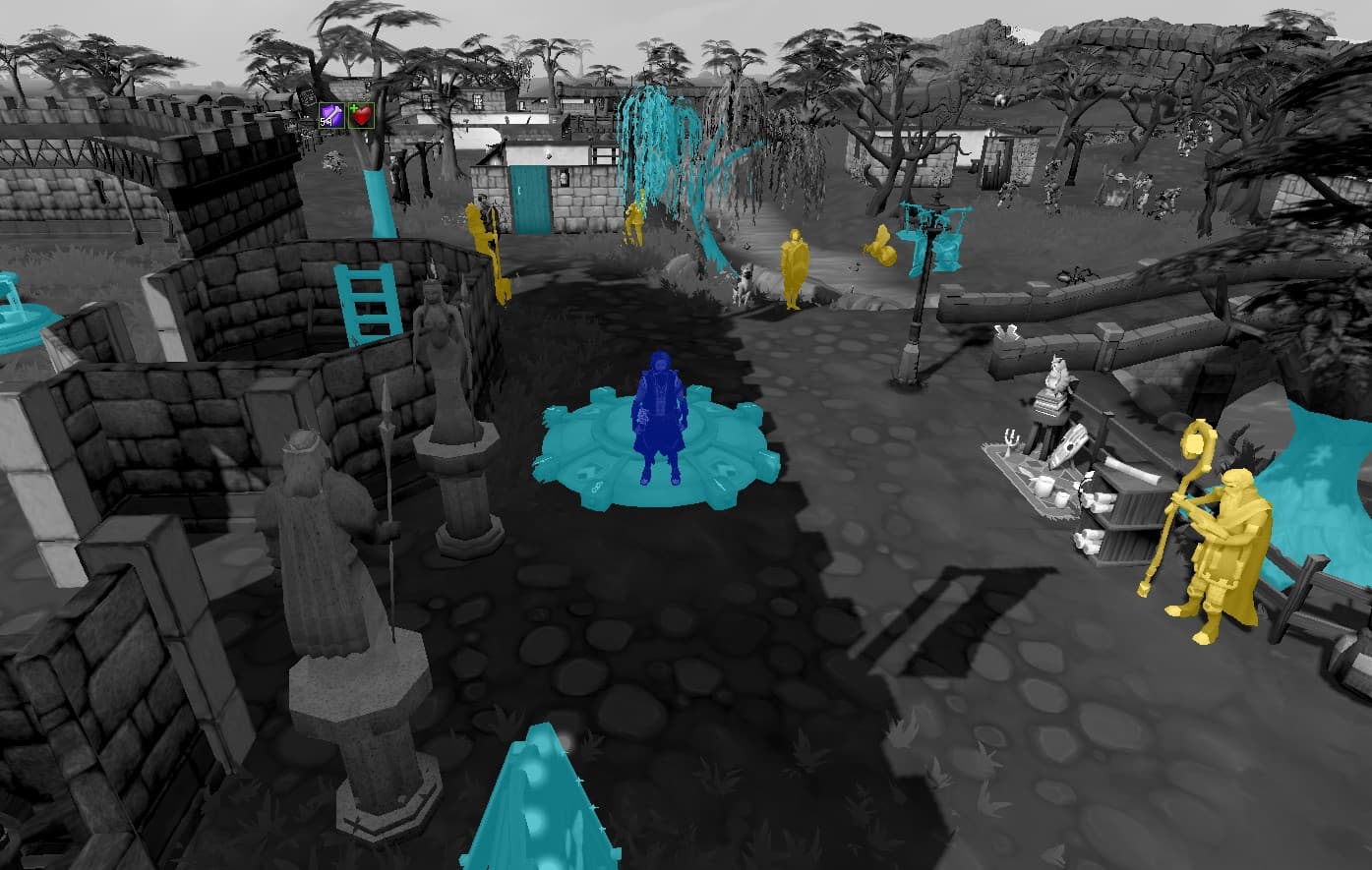
High contrast mode is an accessibility feature which can be toggled on or off at any time. It is especially useful to help distinguish between object types in cluttered areas.
By default, some entity types share the same highlight colour. If you would like more distinction, you can change the highlight parameters of each object type in the entity highlight settings.