Interface Setup
Setting up your RuneScape interface
Setting up your RuneScape interface is easy:
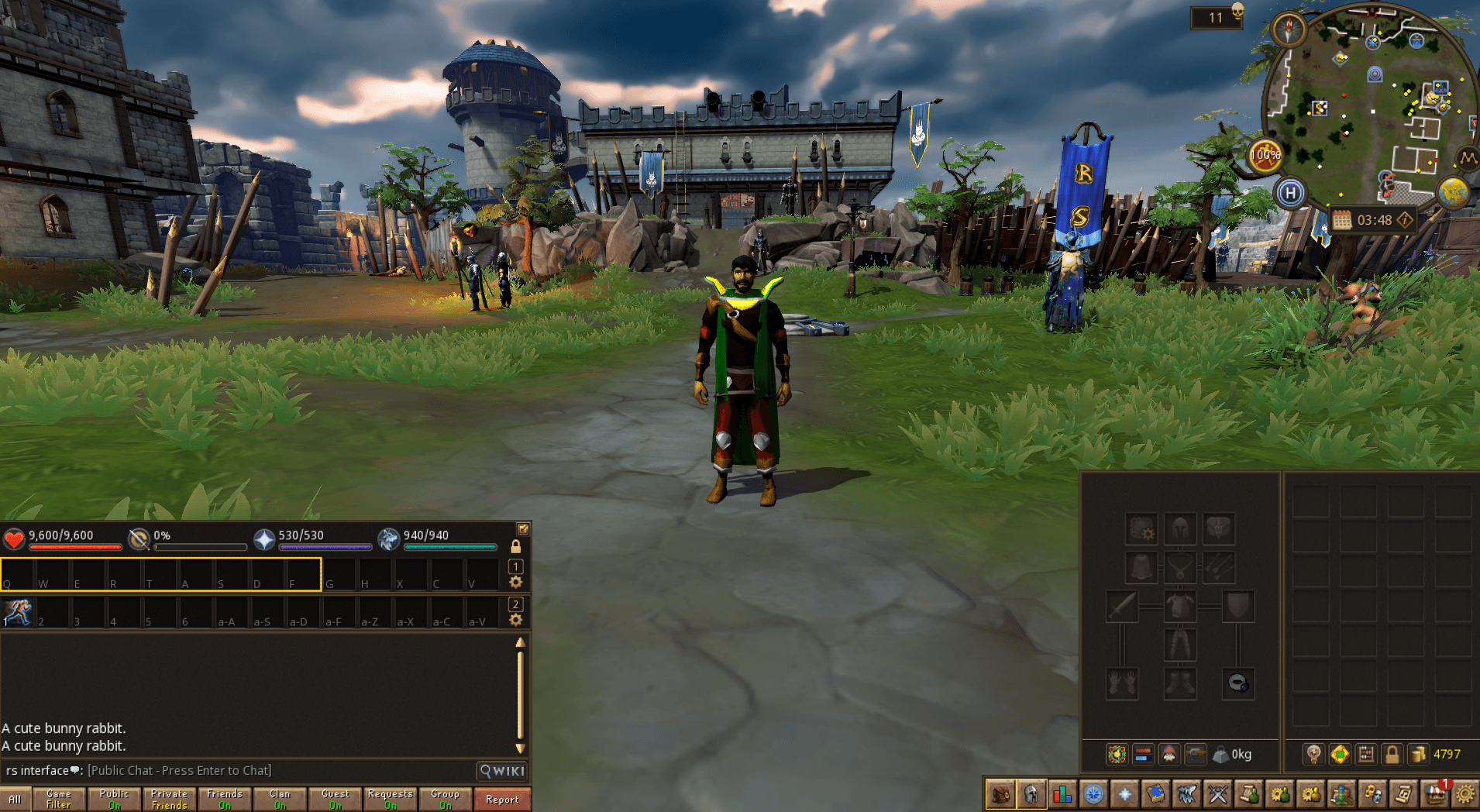
By default, you'll start your adventure in what's known as Classic Mode This is a standard, resizable interface that is perfect for beginners and has a lot of good features, in convenient places. If you're an Old School RuneScape player, you'll see many components like the inventory tabs, chatbox, and minimap that may be familiar to you.
Default Interface Layout
While the Classic mode is the perfect starting point, later on in your journey you may want to build a custom interface that is perfectly catered to your needs.
- Press Escape
- Select "Settings"
- Search for "Legacy Modes" in "Gameplay Settings"
- Change "Game Interface Layout" from Classic to Modern.
Interface Sharing
RuneScape has interface sharing, which has made this process significantly easier. In just a few steps you can instantly import a community-recommended interface layout saving a ton of time and effort!
- Press Escape
- Select "Settings"
- Search for "Legacy Modes" in "Gameplay Settings"
- Change "Game Interface Layout" from Classic to Modern.
RuneScape has interface sharing, which has made this process significantly easier. In just a few steps you can instantly import a community-recommended interface layout, saving a ton of time and effort!
Interface Setup Guide
- Press Escape 2. Click "Edit Layout Mode" 3. In the "Load From A Player" box, type "rs interface" 4. Select "Custom 1" if your resolution is 1080p 5. Select "Custom 2" if your resolution is 1440p 6. Under "Save Layout" use the dropdown to select "Custom 1" 7. Click "Save" 8. Click "Save and Exit"
Once you've followed the above steps, your interface should look something similar to this:
1080p (1920x1080) 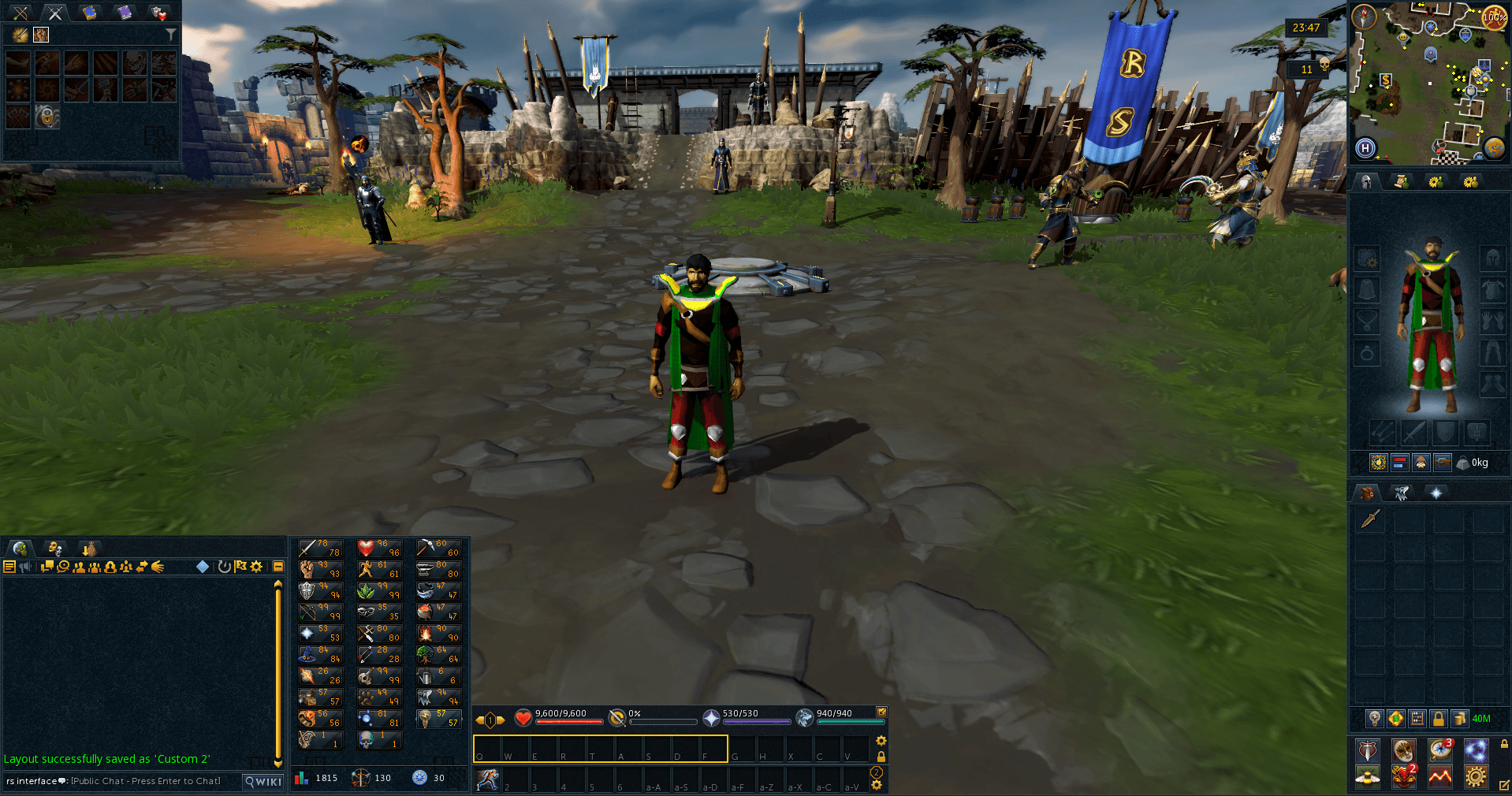
1440p (2560x1440) 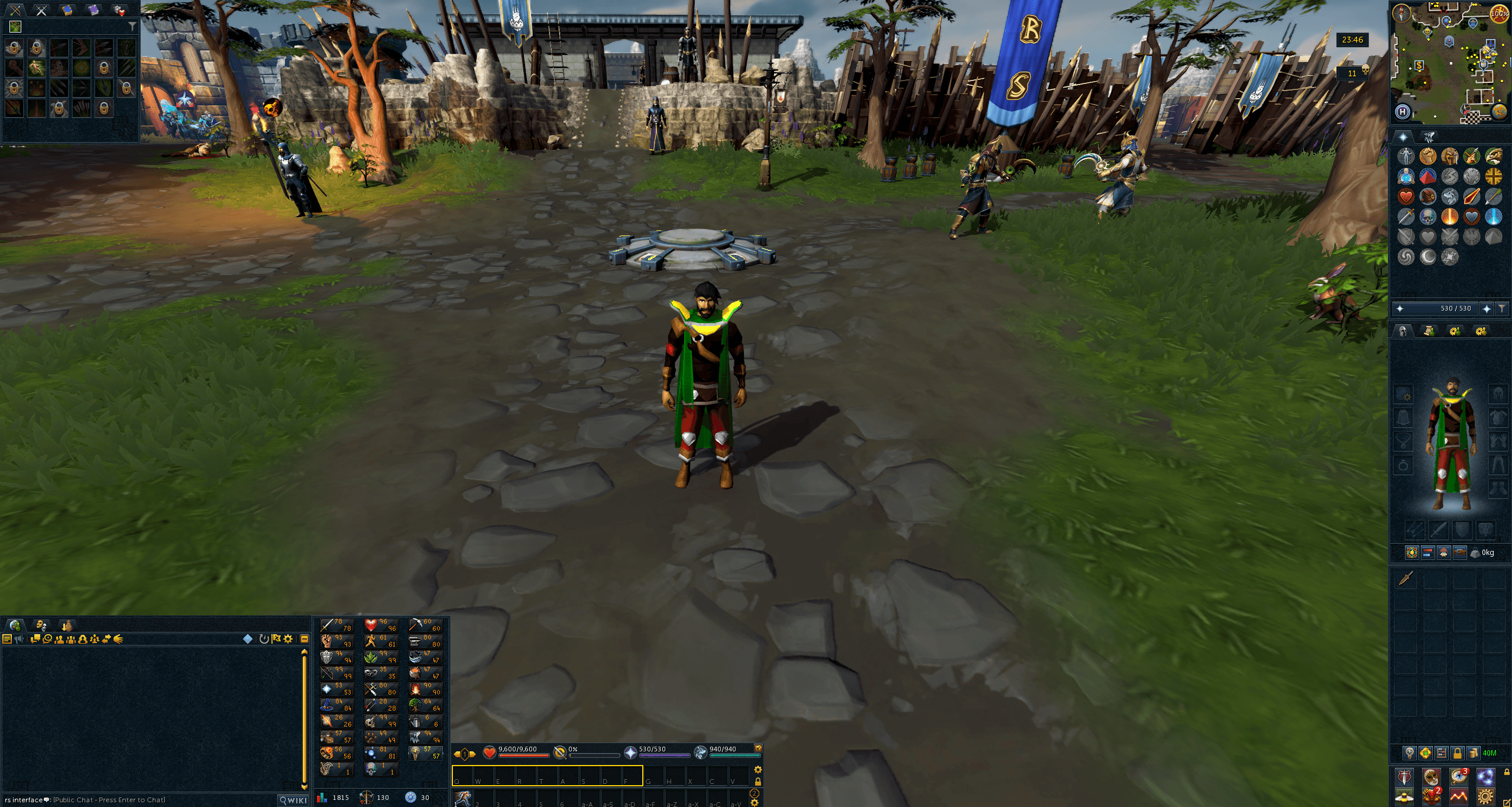
You'll notice on the top left that a number of ability books are present and open. Once you've set up your action bars and begun to engage in combat, these can be freely closed.
Making Changes to Your Interface
- Press Escape
- Click "Edit Layout Mode"
- Click "Save to Preset"
- Select the preset you wish to overwrite
- Click "Save"
- Click "Save and Exit"